

6 REAL Reasons Why You Need A Mobile-Optimized Website
We’ve all heard the saying, “If you build it, they will come.” But what about that other saying: “If you build it right, they&...
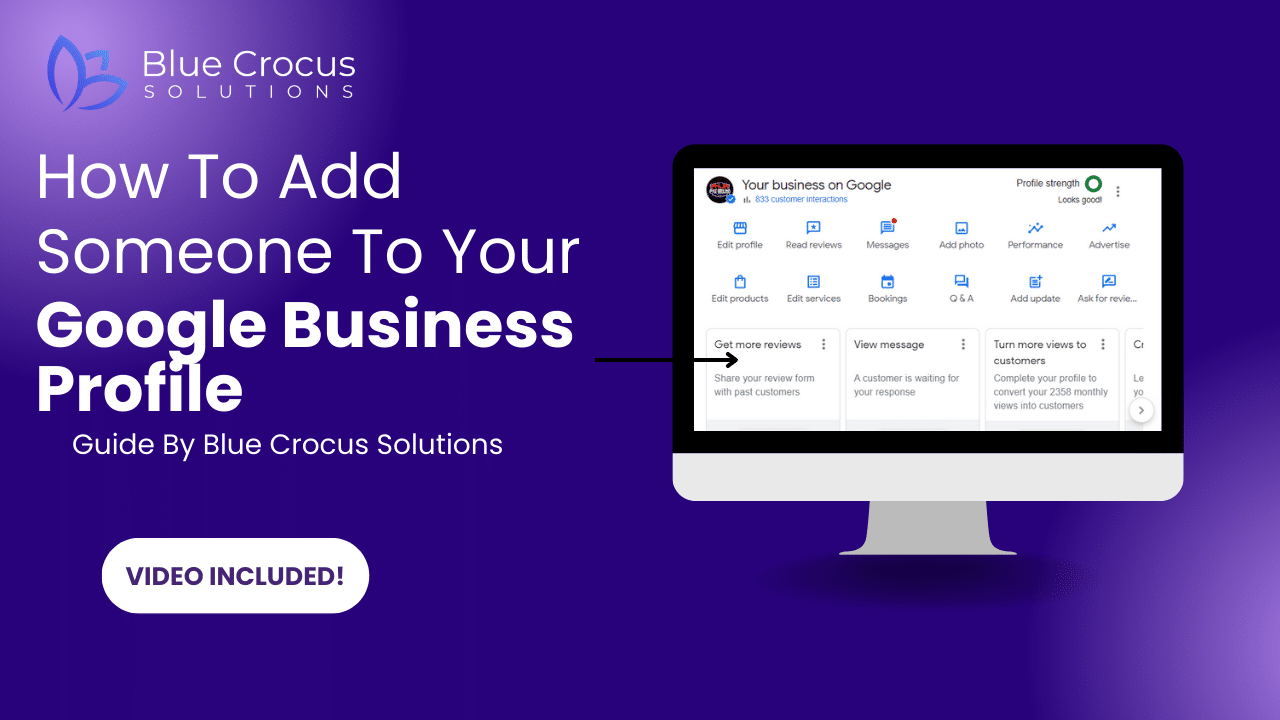
If you’re the owner of a home service business, you might not know the ins and outs of how to navigate your Google business profile properly.
In this simple-to-follow guide, we will show you how to add someone to your Google business profile. And don’t worry, it’s a relatively straightforward process.
By adding someone to your Google business profile, you give them access to manage your profile, including items such as updating your business information responding to reviews and posting updates.

To get started, head on over to https://www.google.com/business/ then enter your login credentials.

Type in the name of your business to the Google search field. After you’ve logged in to your Google business profile, then you will see an interface where you can interact with your profile.
For further readings into this step please reference Google’s guide on how to find your business profile.
Then, click the three white dots indicated in the photo demonstration.

After you’ve clicked the three white dots, you will see a drop-down menu. Click the first option, this will bring up a new window

In this new window, click the first option that says managers here’s where you’ll add someone. You can select whether you want them to be the owner of your google business profile or to simply manage it for you.
Enter the email to which you want the invitation sent.
That’s it! This is how you add someone to your Google Business Profile.
If you want a more visual guide then view the video below!