
Think LinkedIn is just for job seekers? Think again.
Your LinkedIn Business Page is one of the most powerful tools to grow your brand, boost credibility, and connect with customers and talent. Whether you’re a small local business or a growing company, having a polished LinkedIn presence helps you stand out in a crowded market.
In this article, I’ll walk you through every step of setting up your LinkedIn Business Page—from start to finish—with tips to make sure your profile doesn’t just exist, but thrives.
Why Bother Creating a LinkedIn Business Page?
Here’s what you gain:
-
Enhanced Brand Visibility
Make your company easy to discover by potential clients, partners, and future employees. -
Increased Credibility
Establish a professional online presence that builds trust and authority. -
Lead Generation
Tap into LinkedIn’s vast network to attract potential customers. -
Recruitment & Talent Acquisition
Showcase your company culture and values to draw in top-notch talent. -
SEO Advantages
LinkedIn pages rank in Google search results, giving your business extra exposure. Plus, that backlink to your site? More SEO juice.
What You Need Before You Start
Before diving in, make sure you have:
-
A personal LinkedIn account tied to your company email.
-
The authority to create a page for your business.
-
A unique company name and a custom LinkedIn URL (like linkedin.com/company/yourbusiness).
-
Branding assets:
-
Company logo (300 x 300 pixels, JPG/PNG).
-
Cover/banner image (1128 x 191 pixels, JPG/PNG).
-
Tagline (120 characters max)—sum up what your business is about.
-
Company description (up to 2,000 characters)—tell your story, mission, and services.
-
Step-by-Step Guide to Setting Up Your LinkedIn Business Page
Step 1: Log Into LinkedIn
-
Sign in to your personal LinkedIn account.
-
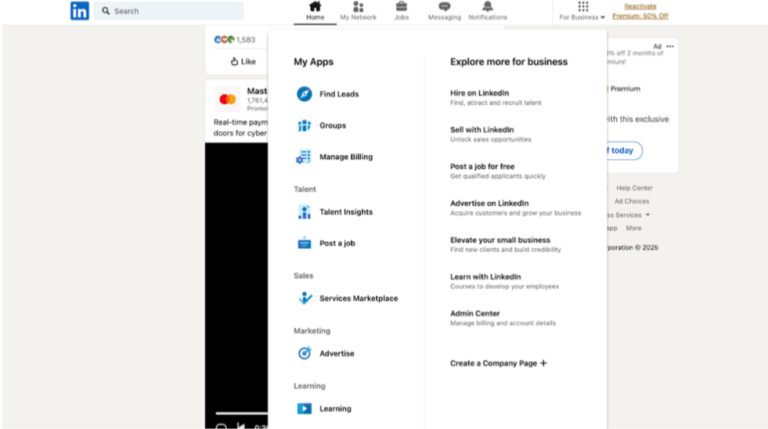
Head to the top menu, click “For Business”.
-
Scroll down and select “Create a Company Page+”.
Step 2: Choose Your Page Type
You’ll get three options:
-
Company Page (best for small, medium, and large businesses—this is the one 99% of people use).
-
Showcase Page (for sub-brands or initiatives tied to an existing company page).
-
Educational Institution (for schools or training centers).
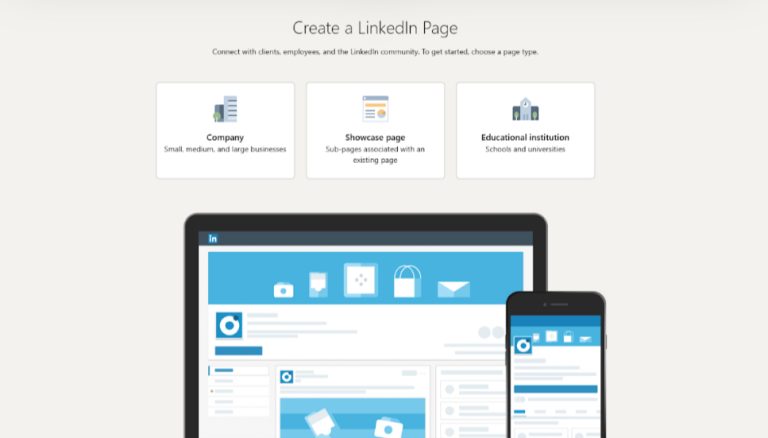
Choose “Company Page” to continue.
Step 3: Enter Your Page Identity Details
-
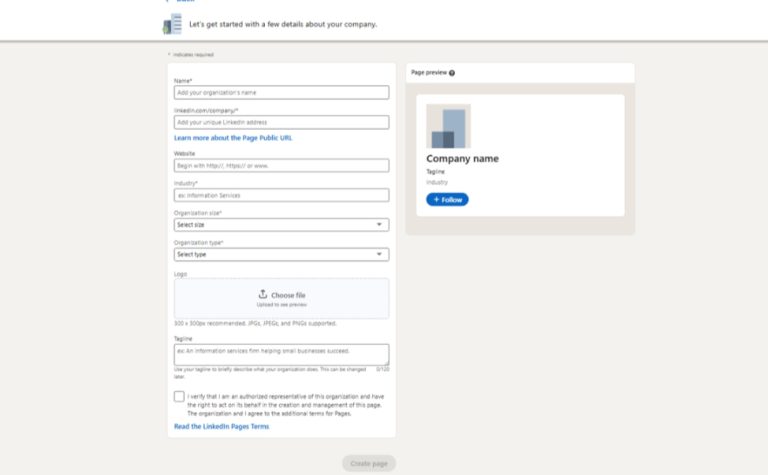
Company Name – Type your business name as it should appear.
-
LinkedIn Public URL – Customize your LinkedIn URL (you can update it every 30 days).
-
Website – Add your company’s official website.
Step 4: Fill in Company Details
-
Industry – Select the category that best fits your business.
-
Organization Size – Indicate how many employees you have.
-
Organization Type – Choose between privately held, nonprofit, government agency, etc.
Step 5: Upload Your Branding
-
Company Logo – Upload a clean, high-quality logo (300 x 300 pixels).
-
Tagline – Add a punchy one-liner that sums up your mission.
Step 6: Create the Page
-
Review your details.
-
Confirm that you have the authority to create this page.
-
Click “Create Page”—and boom! Your LinkedIn Business Page is live.
Step 7: Optimize Your Business Page
To make your page shine:
-
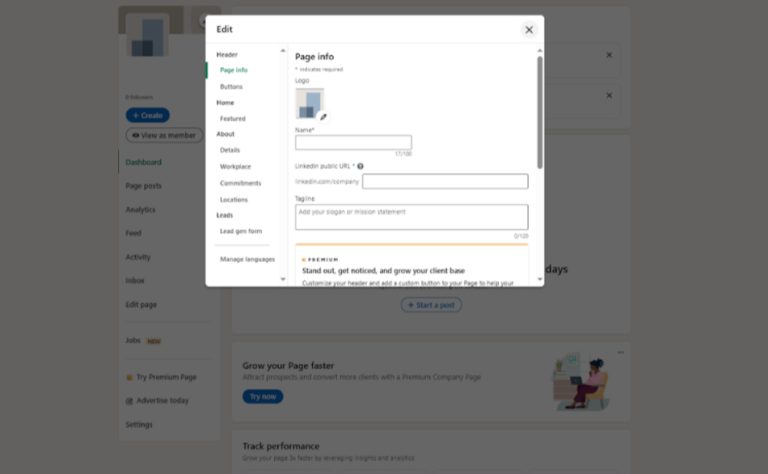
Cover/Banner Image
-
Size: 1128 x 191 pixels
-
Keep key elements centered (avoid cropping).
-
Use high-res images that align with your brand.
-
-
About Section
-
Write a compelling story about your company—highlight your mission, values, and what sets you apart.
-
-
Products & Services
-
Use LinkedIn’s Product Pages to showcase your top offerings.
-
-
Company Culture (Life Tab)
-
Share employee testimonials, behind-the-scenes content, and company events.
-
-
Jobs Section
-
List current openings to attract top talent.
-
-
People Section
-
Display employees connected to your page, boosting credibility.
-
Common Mistakes to Avoid
Don’t fall into these traps:
-
Incomplete Profile
A half-finished page looks unprofessional. Fill out every section. -
Low-Quality Images
Pixelated logos or banners? Nope. Stick to high-res. -
Ignoring Updates
Post regularly—share company news, tips, or industry insights to stay relevant. -
Generic URL
Customize your LinkedIn URL for a professional touch (e.g., linkedin.com/company/YourBusinessName). -
No Call-to-Action (CTA)
Encourage visitors to act! Add CTAs like “Visit our website” or “Contact us today.”
There you have it! Your step-by-step guide to setting up a LinkedIn Business Page that doesn’t just sit there but works for your business.
Now, go ahead—get your LinkedIn presence in shape and start making those connections that matter!